Budgetpoint Allows your budget to follow how your household actually plans or gets paid, which means a handful of settings decide when a budget period starts and ends. Here is what each one does.
Budget periods
A budget period is the stretch of time one budget covers. How they run is a household setting, on the Household page, under Budget periods.
What is a budget period?
It is the stretch of time one budget covers. Every category amount you set belongs to a period, and the budget page, the forecast and the reports all read the same ones.
There are three ways to run them: monthly, semi-monthly on your two set days, or on a weekly schedule. The setting applies to the entire household,the setting applies just too budgeting, you can still set up other cadence incomes separately
using the bills feature
Monthly: what does “Starts on day” mean?
The day of the month a period opens on. Day 1 gives calendar months. Day 25 makes the period called August run from 25 July to 24 August.
A day past the end of a short month falls back to that month's last day. Day 31 is the 30th in June and the 31st again in July — it does not drift.
Why is a period named for the month after the one it starts in?
It follows the day you set, not the day the period opens on. Set to a day before the 20th, a monthly period is named for the month that day falls in; set to the 20th or later, it is named for the month after. Moving a start off a weekend never changes the name, because the name reads the day you chose.
That is the money it is meant to cover: paid on the 25th, you are budgeting for next month, and the period is named for the month you are budgeting.
Twice a month, on two set days
Two days of the month, and each one opens a period. The 1st and the 15th give two periods a month.
Type them in either order — the app puts them in order for you. The two days have to be different.
Use weekly schedule
A period every week, every two, on the weekday you pick, counting from a date you choose. Every other Friday counting from 4 September is a period every second Friday from there — forwards and backwards.
Changing the weekday moves the starting date with it, to the nearest date carrying the new weekday. A date left in January is read as one nobody chose, and moves to the first such weekday of that year.
The date box itself saves what you type. Type a date that is not the weekday above it and the box keeps your date, while the schedule counts from the first of that weekday on or after it.
How many budget windows does a weekly schedule give me a year?
It depends on the interval. There are 52 weeks in a year, and while the budget shows weekly the forcasting of the budget is ran for four-week intervals to accomodate bills and drift.
What this means is there are 13 four-week blocks in a calendar year vs twelve months. An amount you set for one period is then spent thirteen times over a year rather than twelve.
What happens to the amounts I have already set if I change the schedule?
Changing the schedule replaces the old period windows with new ones. Each category amount carries into the replacement period that contains its old period’s start date.
Where two old periods fall inside one new one, their amounts are added together. Nothing is thrown away, but the shape changes, so it is worth a look at the budget page afterwards.
Weekends and bank holidays
Paydays move when the banks are shut, and a period can move with them. This is the setting that decides whether it does.
What does “If a period starts on a weekend or holiday” do?
It moves the start of a period off a day the banks are shut — to the working day before it, or the working day after it, whichever you pick. Left on “Don’t move it”, the dates stand as you set them.
For a payday that arrives early: if the 25th is a Sunday the deposit lands on Friday the 23rd, and so should the period.
It applies to the start of a period. Ends follow on their own — a period always ends the day before the next one starts — so moving a start moves the previous period’s end with it. That is what keeps periods from overlapping or leaving a gap.
Which days count as holidays?
Saturdays and Sundays always. Bank holidays as well, when “Skip bank holidays too” is ticked.
The holidays are your household’s own list. We start it off with the US federal days; add your employer’s days off to it, and remove anything you do not want a period to move off.
Two things read the list. Period boundaries move off a listed day when the setting above is asking them to. And the forecast reads it whatever that setting says: a bill your history shows arriving early when the banks are shut is expected on the working day beside the holiday rather than on the holiday itself.
Each new period
Does a new period start empty?
Only if you want it to. With “Start each new period with the last one’s amounts” on, a new period opens with the amounts from the period before it, so a budget that is mostly the same each time does not have to be typed again.
Turn it off and each new period opens with nothing allocated.
What happens to money I did not spend?
With “Carry unspent money into the next period” on, money left in a category stays with that category next period.
Overspending does not carry. A category starts each period at worst zero, and going over shows in the period it happened in rather than following you around.
Categories and transfers
What is the subcategory separator?
The character that turns a category into a subcategory as you type it in the register. With the separator set to a colon, typing “Gas: Ram” files the row under Gas.
Change it if you would rather type something else. It is one setting for the whole household, so everyone types the same thing.
How do I move money between my own accounts?
Type a category like “Transfer: Savings” on a register row. There is no separate mode and no button — the ordinary category cell is the whole of it.
When Savings is one of your accounts and the transfer setting is on, the matching row is written in that account too, and the two are deleted together. With the setting off, the row is filed under that transfer category and nothing else is written.
Either way a transfer category stays out of your budget and your reports — money moved between your own accounts is not spending. Transfers already entered as a pair are left exactly as they are.
Your dial
What is the dial?
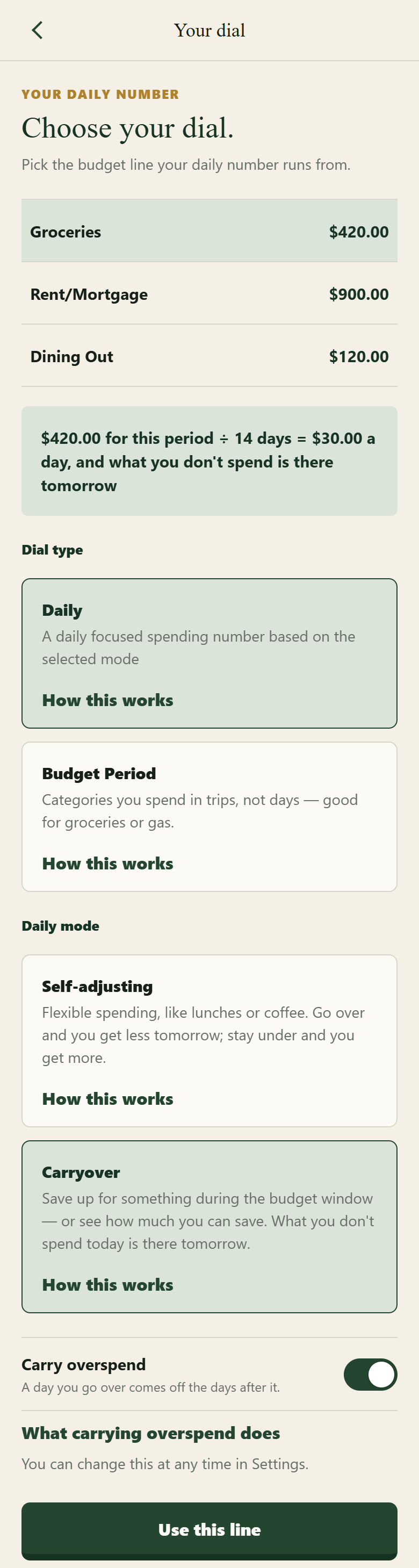
One budget line, and how much of it is safe to spend — for the whole period or day by day, depending on the mode you choose. It is the home screen of Budgetpoint app for iPhone.
You set it by choosing which line it runs from — Groceries, Fun Money, or whichever one you want to watch with a daily balance.
Does everyone in the household get the same dial?
No. The dial is is per user, not the household's — two people in one household can watch two different lines, and neither choice changes what the other sees.
Where do I set it on the web?
Signed in: your name at the top of the page, then Your settings. The dial is a section on that page, and the whole of it is there — the budget line it runs from, whether it reads the budget period or the day, and how a daily dial behaves.
It is the same setting the app reads, so the dial can be set up before the app is on your phone and it is waiting when it is.
Where do I set it in the app?
It asks while you are setting your budget up, and afterwards it is under Settings, then Spending Dial.
The same three settings are there as on the web — the line, the dial type and the daily mode — reading and writing the one dial. Set it wherever you happen to be; the other one catches up.
Dial modes
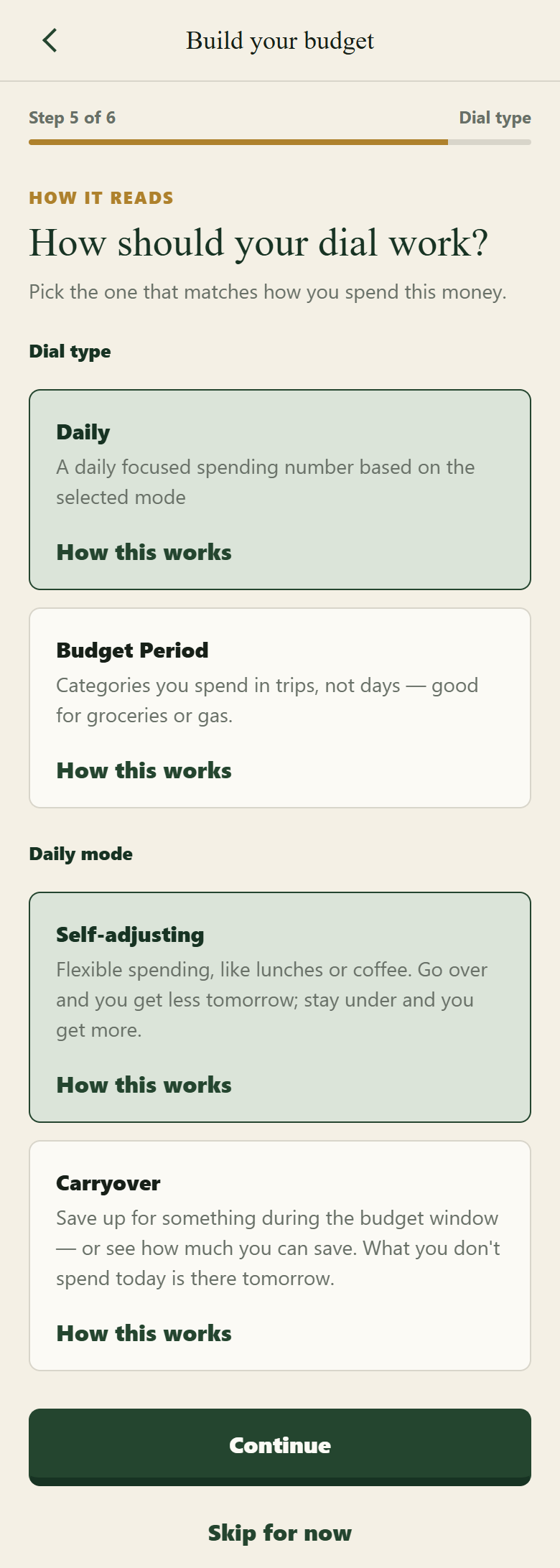
The dial — the home screen of the Budgetpoint app for iPhone — can run two ways: over the whole budget period, or day by day. A Daily dial then runs in one of two modes, Carryover or Self-adjusting. Here is what each one does.
What does a Period dial show?
How much of the line is left for the whole period. One number for the period, and the ring empties as the period does. There is no figure for today.
Good for groceries or gas — categories you spend in trips rather than days, where a daily number is noise.
What does Carryover do?
It splits the line evenly across the days in the period and gives you the same amount every day. What you do not spend today is there tomorrow, so a few quiet days add up on the dial.
Good for saving up for something during the budget window, or for seeing how much you can save.
Spend more than a day’s worth and the dial drops below zero and climbs back a day at a time. Either way the period adds up to the amount you set — Carryover changes when the money is yours to spend, not how much of it there is.
It starts again at each new period. The carry lives inside one period and does not cross into the next.
What does Self-adjusting do?
It works out today’s amount fresh every morning, from what is left in the line and the days left in the period. Go over today and tomorrow is smaller; stay under and tomorrow is bigger.
Good for flexible spending, like lunches or coffee.
Nothing waits for you in a lump. A day you underspend is spread across the days still to come rather than sitting on tomorrow’s dial.
Where do I choose the type and the mode?
In the app. Setting your budget up asks you while you are doing it — a step that shows the two dial types, and the two Daily modes under them, with a line saying what each one suits.
Afterwards they are in Settings, under Spending Dial, along with the line the dial watches. Changing one takes effect on the next dial you look at; nothing is rebuilt and no history is lost.
Every option carries a How this works link, which opens the answer on this page for that mode.
What is the small red triangle?
The day has opened badly enough to be worth saying so, rather than letting the number quietly move. It reads the amount the day started with and not what you have spent since, so ordinary spending today does not raise it — what it points at is earlier days being paid for out of the days that are left.
On a Carryover dial it shows when the day opens with less than nothing to spend: the carry has taken the whole of today. On a Self-adjusting dial it shows when today’s amount has fallen below a quarter of what the period started at.
It shows in either Daily mode. Tap it and the app explains what happened.
Why is my Carryover dial below zero?
You have spent more than the days so far have given you, and the dial is carrying the difference. It is not a charge or a penalty — it is how far ahead of yourself you have got.
It fills back in on its own: each new day adds that line’s daily amount, so leaving the line alone brings the dial back to zero and then above it. It never carries past the end of the period.
If you would rather not spend days in the negative, Self-adjusting takes what is left and spreads it over the days remaining, so today starts at a smaller number instead of a negative one.
Who these settings belong to
Who can see and change them?
For household settings: Everyone in the household. Accounts, categories, transactions and the budget are shared, and so are the settings on the Household page — the schedule one person sets is the schedule everyone sees.
User Settings: Just you. Your theme, your display preferences and your dial are yours alone.
There is no per-person budget and no second set of books to keep in step.
Where are these settings?
In two places, once you are signed in. The household's settings — budget periods, non-working days, categories and transfers — are on the Household page.
Your own are under your name at the top of the page, on Your settings: the theme, what you see by default, your dial, your password and two-step sign-in.
This page is the explanation; the switches themselves live there.
I do not have an account yet. Can I still ask something?
Yes. Email support@budgetpoint.co with any question about how Budgetpoint works. You do not need an account, and you do not have to pay to ask.
A person reads it and answers.
Still stuck
Ask us. A person answers.
Signed in, Support is in the account menu on every page. Not signed in yet, email support@budgetpoint.co.